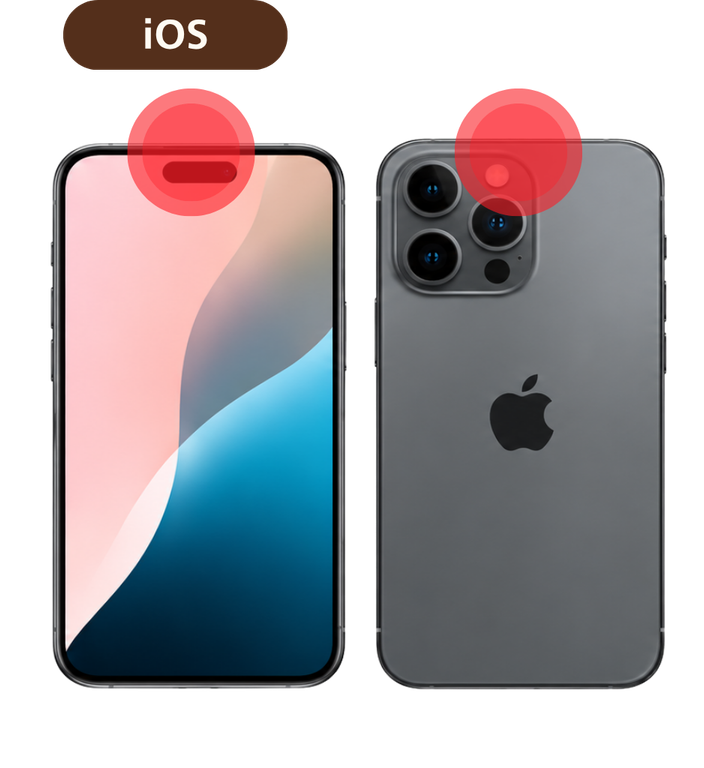
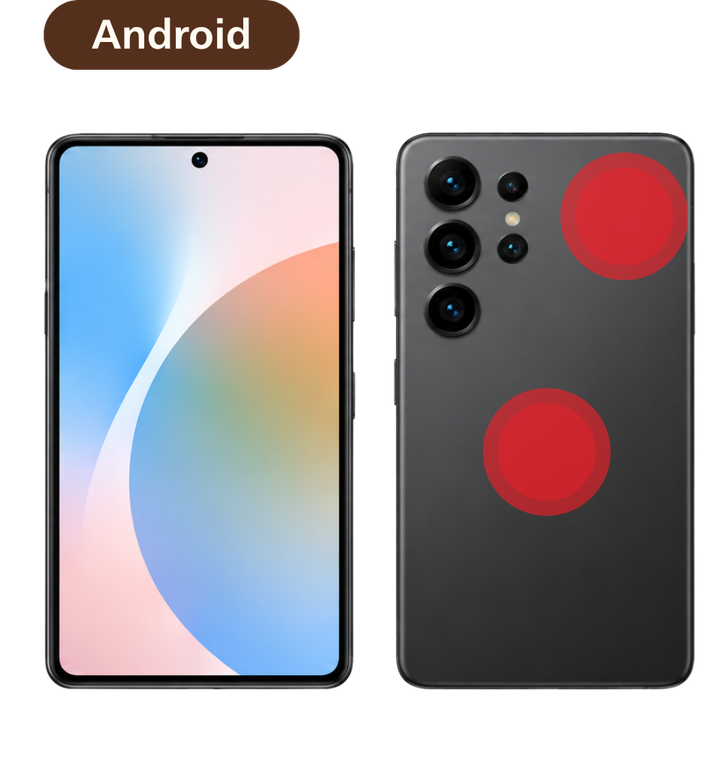
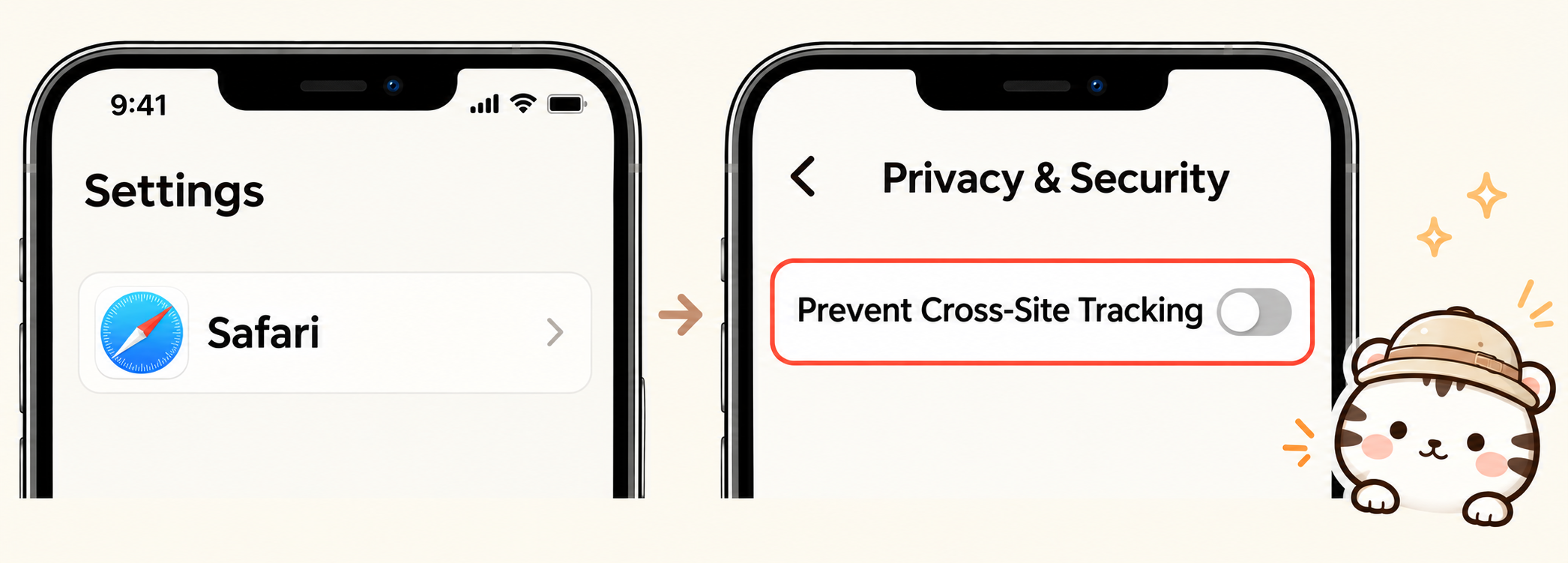
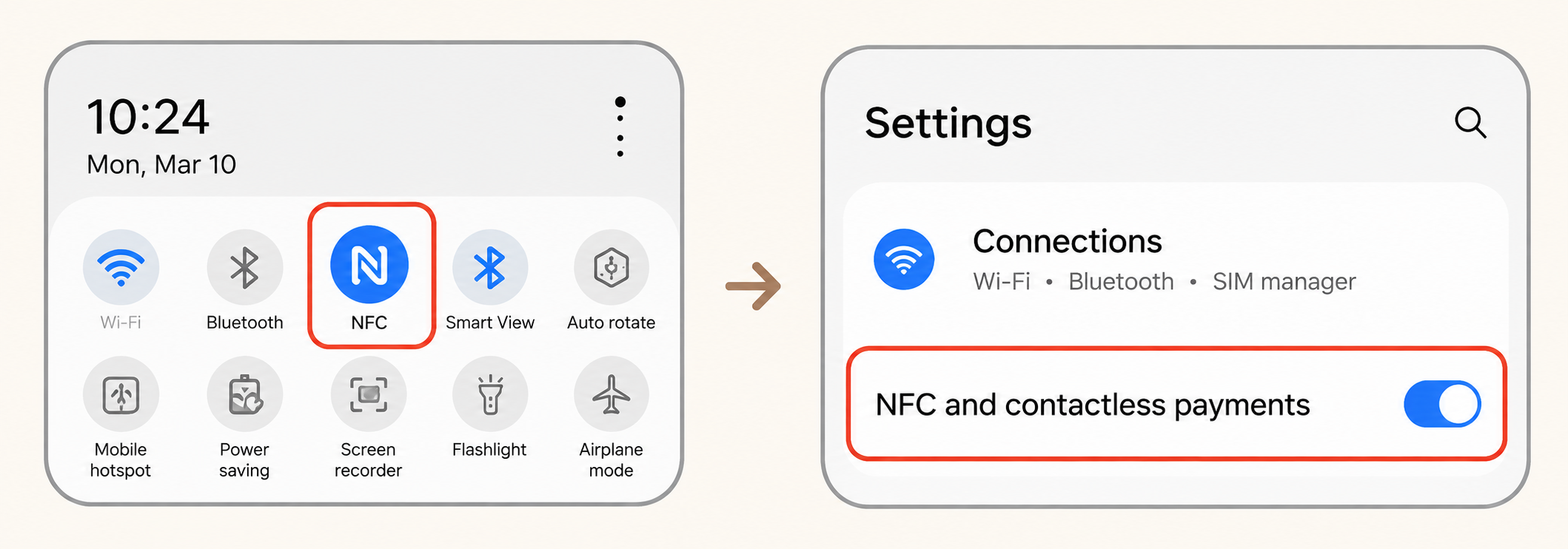
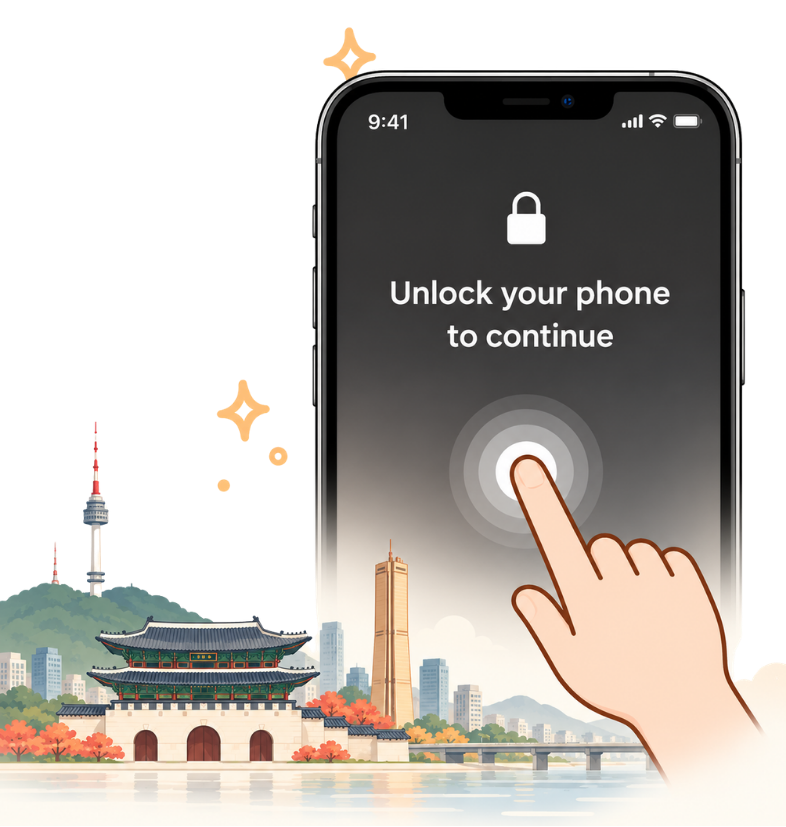
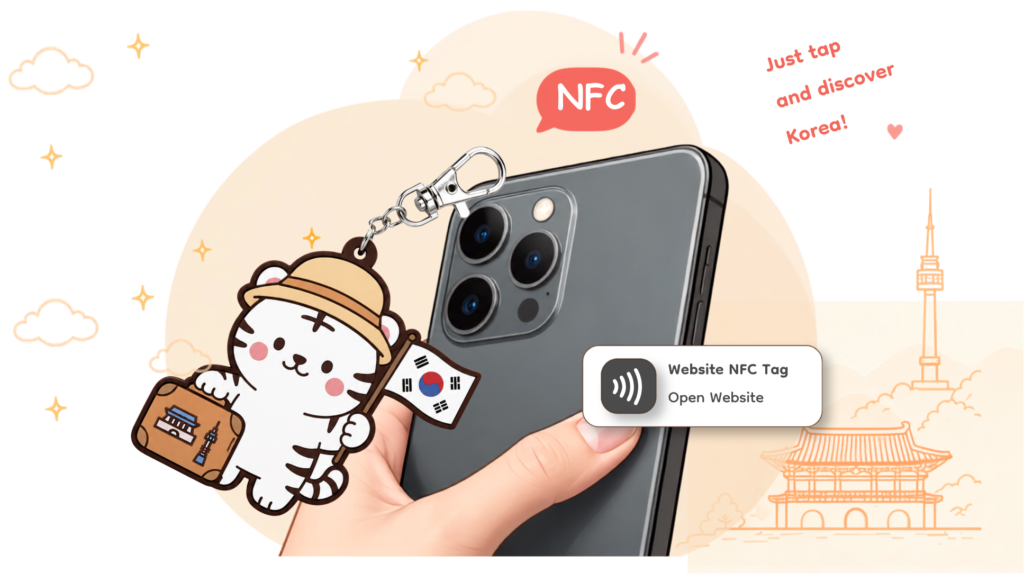
HOW TO USE How to Use YourNFC Keyring 1 Tap the NFC keyring on your smartphone's NFC antenna. 2 After tapping, tap the notification that appears. Thick phone cases may make NFC recognition difficult. Your smartphone screen should be on. Where Is the NFC Antenna? Please make sure your smartphone supports NFC.The NFC antenna location differs by smartphone model.Search for [your model name + NFC location] if needed. iPhone Top of the screen (front) or upper back area (near camera). Android Often near the top or center back of the device.(Location may vary by model.) Before You Start Using Safari? Turn Off "Prevent Cross-Site Tracking" If you use Safari as your default browser, you may need to disable "Prevent Cross-Site Tracking" for normal access. Using Android? Turn On NFC on Android Android devices may require NFC to be enabled Method 1 - Turn on NFC from the quick settings panel. Method 2 - Turn on NFC in Settings. What if a Lock Screen Appears? If the page is locked after a refresh, expired session, or direct-link access, tap the Baeko keyring again. If you use Safari, disable "Prevent Cross-Site Tracking" and try again. GET YOUR BAEKO → HOW TO USE How to Use Your NFC Keyring 1 Tap the NFC keyring on your smartphone's NFC antenna. 2 After tapping, tap the notification that appears. Your smartphone screen should be on. Thick phone cases may make NFC recognition difficult. Where Is the NFC Antenna? Please make sure your smartphone supports NFC.The NFC antenna location differs by smartphone model.Search for [your model name + NFC location] if needed. iPhone Top of the screen (front) or upper back area (near camera). Android Often near the top or center back of the device. (Location may vary by model.) Before You Start Using Safari? Turn Off "Prevent Cross-Site Tracking" If you use Safari as your default browser, you may need to disable "Prevent Cross-Site Tracking" for normal access. Using Android? Android devices may require NFC to be enabled Method 1 - Turn on NFC from the quick settings panel. Method 2 - Turn on NFC in Settings. What if a Lock Screen Appears? If the page is locked after a refresh, expired session, or direct-link access, tap the Baeko keyring again. If you use Safari, disable "Prevent Cross-Site Tracking" and try again. GET YOUR BAEKO → HOW TO USE How to Use YourNFC Keyring 1 Tap the NFC keyring on your smartphone's NFC antenna. 2 After tapping, tap the notification that appears. Your smartphone screen should be on. Thick phone cases may make NFC recognition difficult. Where Is the NFC Antenna? Please make sure your smartphone supports NFC.The NFC antenna location differs by smartphone model.Search for [your model name + NFC location] if needed. iPhone Top of the screen (front) or upper back area (near camera). Android Often near the top or center back of the device. (Location may vary by model.) Before You Start Using Safari? Turn Off "Prevent Cross-Site Tracking" If you use Safari as your default browser, you may need to disable "Prevent Cross-Site Tracking" for normal access. Turn On NFC on Android Android devices may require NFC to be enabled Method 1 - Turn on NFC from the quick settings panel. Method 2 - Turn on NFC in Settings. What if a Lock Screen Appears? If the page is locked after a refresh, expired session, or direct-link access, tap the Baeko keyring again. If you use Safari, disable "Prevent Cross-Site Tracking" and try again. GET YOUR BAEKO →